
Part 1
What’s in your template
This guide covers what’s the same for every Vira template: how Framer works, the AI, the interview, publishing and what to do after launch. Each template also has its own “Start here” guide inside, with the steps, the interview and the prompts for that template.
Click “Get the template” and Framer opens. Sign up for free with your email or your Google account, and Framer makes your own copy of the template. That copy is the one you edit.
The “Start here” guide. Open it in the pages panel on the left. It has 4 steps, a 5-minute interview, and prompts and notes made for that template.
/site-copy. A skill that rewrites the text on your site from the brief the interview gives you. It knows what every section is for.
/design. A skill that builds new sections, and changes colors and fonts, with the template’s own styles.
/launch-check. A skill that checks the site before you publish and fixes what it can.
Design System. A page with every color, text style and component the template is built from.
Video from Framer: Learn the Framer interface
Start with the “Start here” guide inside your template. Come back here when you want to know why a step works, or what comes after it.

Part 2
Choose your AI
You use 2 kinds of AI with a Vira template. You don’t need to pay for anything new to start.
Two kinds of AI
ChatGPT or Claude, for the interview. The interview runs in a normal chat in ChatGPT or Claude, so it uses none of your Framer credits. A free account works.
Framer’s AI, for your site. It’s the “Agent” tab at the top of the right sidebar, and it works directly in your project. Pick GPT 6 Luna and set reasoning to Medium. The skills in every template are written for that setup. If you go over the free limit, you aren’t charged. The AI stops, and you can still edit the site by hand.
Or connect your own Claude or ChatGPT
You can also connect Claude Code, ChatGPT Codex or Cursor to your Framer project.
Good: it uses your own subscription instead of Framer credits.
Less good: it takes a few minutes to set up, and the skills in your template are written for Framer’s own AI.
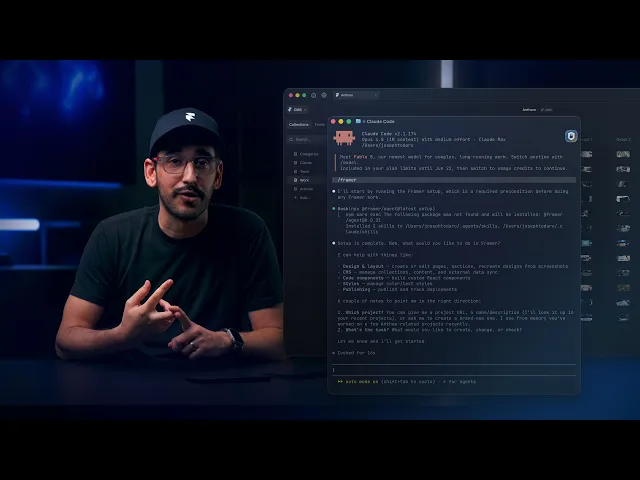
Video from Framer: Connect Framer to Claude Code, ChatGPT Codex, Cursor, and more
The free 500 credits are enough to customize a template with its interview and prompts. If you run low, do the rest by hand or connect your own Claude or ChatGPT.

Part 3
The interview, built on strategy
Most templates ask who you are and which style you like. A Vira template asks what your customers wonder before they buy.
That’s what decides if someone gets in touch: what they get, what makes them hesitate, what makes it feel safe and what they compare you with. Every section in the template answers 1 of those questions. The interview collects your answers to them.
Each Vira template is built for a specific kind of business, like a course creator or an agency. The sections, their order and what each one says follow how that kind of customer decides. If you only replace the text, that plan is easy to lose. The interview keeps it, because your answers go into the structure that’s already there.
You find the interview in the “Start here” guide inside your template. Paste it into ChatGPT or Claude, and it asks 1 question at a time. It takes about 5 minutes and ends with a brief, a short summary of your answers.
Tips for the interview
Answer in your own words. Short answers work, but more detail gives a better result. The brief keeps your words, so the site sounds like you.
Say yes when an example fits. Every question comes with an example based on what you’ve said. If it’s right, “yes” is enough. If it’s close, fix the part that’s wrong.
Say what feels wrong. Before the brief, it tells you what it thinks should lead your site. If that’s wrong, say so and it changes it.
It’s still AI, so it can get things wrong. The brief is a first draft that you can edit.

Part 4
Rewrite, then fine‑tune
The brief starts with “/site-copy”. That’s a skill saved in your template. It tells Framer’s AI what every section is for before it writes anything.
“/site-copy” only changes the text. Every section keeps its place and its job, and your answers go into it. That way the plan behind the template stays, even when every word is yours.
How it works
Paste the brief. Start a new chat with Framer’s AI, paste the brief and check that “/site-copy” turns blue.
Let it write. It rewrites the text in your words. Then it asks which section feels least right and rewrites it if needed.
Read what’s still demo content. It lists what it didn’t change, like photos, quotes and prices, and how to change each one. Most of them have a prompt in the “Start here” guide.
Fine‑tune. Double-click any text to change it yourself. For anything bigger, start a new chat and ask for 1 thing at a time.

Video from Framer: Introducing Skills
Prompts for fine‑tuning
These are examples. The “Start here” guide inside your template has more prompts, made for that template. Paste 1 prompt into a new chat with Framer’s AI. Type “/design” first when you want a new section that matches the rest of the site.
Build a new page or section
/design Build a new page or section for my site. First ask me what it’s for and what should be in it, 1 question at a time. Then build it with the colors, text styles and components the site already uses.
Use your own colors and fonts
/design Change the colors and fonts to mine. Ask me for my colors and my fonts first, and keep every size and spacing as it is.
Update your social links
Change the links to my social media profiles everywhere on the site. Ask me for my profiles first, and remove the icons for the ones I don’t have.
Tools I use
When the text is done, swap the pictures for your own. These tools make that easier.
Squoosh shrinks images so your pages load fast. Export photos as WebP. squoosh.app
Photoroom removes the background from a photo. Good for portraits. photoroom.com
Lummi has free photos and illustrations for when you have none of your own. lummi.ai

Part 5
Structured data
Structured data is a small block of code in your site settings. It tells Google and AI assistants like ChatGPT who you are, what you sell and who it’s for. Visitors never see it.
It’s how a search result can show your price or your questions, and how an AI assistant can describe you correctly. Every Vira template has an example in place, so you don’t start from nothing. Take the facts from your finished site, not from the brief, since you may have changed things after the interview.
How to add it
Let Framer’s AI read your site. Paste the first prompt below into a new chat. It reads every page and lists the facts, without changing anything.
Copy the example. Open “Site Settings”, go to Custom Code and copy the structured data block that came with your template.
Write it in Claude or ChatGPT. Paste the second prompt into a new chat, and add the facts and the example where it says. This uses none of your Framer credits.
Paste it back. In “Custom Code”, replace the example with the new block.
Test it. Publish, then test your address with Google’s Rich Results Test.
Prompts for structured data
1. Paste into Framer’s AI
Read every page of my site and list the facts about me and what I offer, for structured data: my name or business name, my web address, a 1-sentence description, my email, my social profiles, what I sell with price and currency, and every question and answer in the FAQ. Use only what’s written on the site, word for word where you can. If something is missing, say so. Don’t change anything.
2. Paste into Claude or ChatGPT
Below are the facts from my finished site and the structured data example from my website template. Rewrite the example so it describes me, as 1 script tag of type application/ld+json using schema.org. Keep the types that fit what I offer and remove the ones that don’t. Use only the facts I give you, and never invent reviews, ratings or prices. If something is missing, ask me. Give me the whole block in 1 code block, ready to paste into Framer. Facts: [paste the list from Framer’s AI] Example: [paste the example from Custom Code]
Part 6
The checklist
Type “/launch-check” in a new chat with Framer’s AI, and it goes through all of this for you. Out of credits, or want to check yourself? Go through the list by hand.
Nothing from the template is left: names, prices, pictures or links.
Every button goes somewhere real, and the buy or booking buttons go to your own page.
Forms reach your inbox, and the privacy policy has your name and contact details.
Every page has its own title and description.
The site icon and the share image are yours.
Every image has a short description.
The structured data describes you, or it’s removed.
Every page checked on desktop, tablet and phone.
Part 7
Your domain, and going live
Publish first on a free address, then connect your own domain when you’re ready.
Publish. Click “Publish” in the top right. A few seconds later your site is live on a free address ending in framer.app.
Pick a plan. Your own domain needs a paid Framer plan. Every Vira template works on the cheapest one.
Connect your domain. Buy a domain anywhere you like and connect it in Site Settings, under Domains. Framer includes a free domain with an annual plan.
Change things later. Your changes reach visitors only when you publish again.
Nothing is live until you click “Publish”, so you can try things freely. You can’t break anything for your visitors.
Part 8
After launch
A few free checks tell you how your site does with Google, AI search and real visitors.
Run the AEO scan. Test your address at framer.com/aeo. It scores how findable, quotable, understandable and trustworthy your site is for AI search. Aim for 100, and email me if you land lower.
Check the speed. Test your address at pagespeed.web.dev. Big images are almost always the reason for a low score.
Look at your visitors. Framer shows visitors and page views under Analytics, with nothing to install.
Connect Google Analytics, if you use it. Paste your Google Analytics measurement ID in “Site Settings”, in the Google Analytics field. Framer’s own analytics work without it.
Add your site to Google Search Console. It tells Google your site exists, so it shows up in search sooner. Framer’s guide shows how.
